
Mwonekano wa Mada unaonyesha orodha ya mada na vikundi vya mada kulingana na ruhusa zako za mtumiaji. Makala haya yanashughulikia jinsi ya kusogeza mada, kudhibiti mwonekano wa ramani, kutazama nyimbo za mada, na kusawazisha data ya mada.
Kumbuka: Mada haionekani kwenye ramani hadi iongezwe kwenye kundi la mada. Unaweza tu kuona vikundi vya mada ambavyo umepewa ruhusa ya kufikia. Tazama: Kutoa Ruhusa ya Kuona Vikundi vya Mada
Kichupo cha Mada

|
Gusa aikoni ya Masomo kwenye Upau wa Urambazaji ili kufungua mwonekano wa Masomo. Hii inaonyesha makundi yote ya masomo ambayo mtumiaji aliyeingia ana ruhusa ya kuyatazama.
|
Ili kufungua kikundi cha mada na kuona yaliyomo, gusa mshale ulio karibu nacho. Mwonekano unaofungua unaonyesha:
 |
Wahusika huonyesha nafasi yao ya mwisho inayojulikana na muda ambao ilirekodiwa. Orodha hupangwa kwa kutumia wahusika waliosasishwa hivi karibuni kwanza. |
Tafuta

|
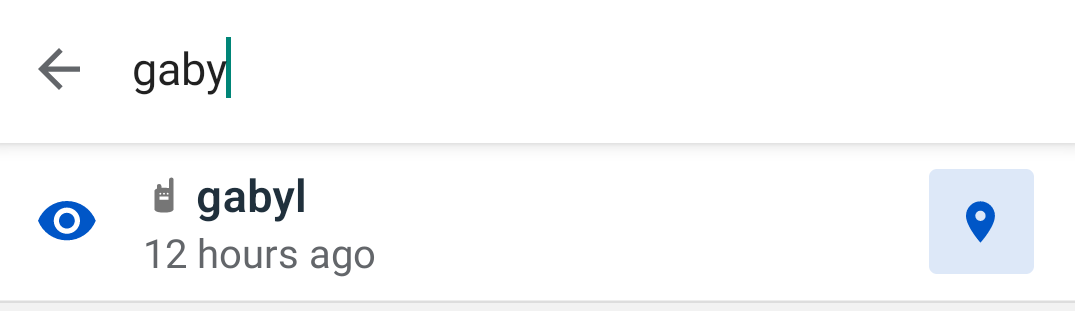
Gusa aikoni ya utafutaji ili kufungua upau wa utafutaji.
|
Dhibiti mwonekano wa mada kwenye ramani
 |
Kila mada na kundi la mada katika orodha lina aikoni ya jicho inayodhibiti kama inaonekana kwenye ramani:
|

Sanidi mipangilio ya usawazishaji wa mada

|
Katika Mipangilio , unaweza kusanidi ni siku ngapi za data ya mada ambayo programu huhifadhi na kuonyesha katika orodha na mwonekano wa ramani.
Baada ya kubadilisha mpangilio huu, usawazishaji wa mikono unahitajika. Nenda kwenye Mipangilio na ubonyeze kitufe cha Usawazishaji ili kutumia mabadiliko.
Ili kuhakikisha unapokea masasisho ya moja kwa moja, dumisha muunganisho thabiti wa mtandao. Bila muunganisho, utaona data ya hivi karibuni iliyopakuliwa kabla ya kupoteza muunganisho.
|
Mada Kwenye Ramani
Masomo yote katika orodha ya Masomo yanaonekana kwenye mwonekano wa Ramani:
|
 |
 |
Gusa aikoni ya mada kwenye ramani ili kufungua paneli ya maelezo inayoonyesha:

|
|
Nyimbo za Mada
Ikiwa mhusika ana data ya ufuatiliaji kutoka siku 3 zilizopita, kugonga aikoni yake kwenye ramani kutaonyesha mstari wake wa kufuatilia:
|
 |
|
|
 |

Nenda kwenye mada
|

|
Gusa aikoni ya mada kwenye ramani, kisha gusa Nenda Kwenye kwenye paneli ya maelezo. Sehemu ya juu ya urambazaji inaonekana ikionyesha: |
Gusa kitufe cha X ili kufunga sehemu ya juu ya urambazaji na kurudisha ramani katika hali yake chaguo-msingi. Sehemu zote za juu (dira, ramani za msingi, paneli ya doria/ufuatiliaji, mstari hadi mada) hufichwa sehemu ya juu inapofungwa. |

|
Sawazisha data ya mada
Masasisho ya data ya mada unapozindua programu tena au unaanzisha usawazishaji mwenyewe. Ili kusawazisha mada:
- Hakikisha kifaa chako kina muunganisho thabiti wa mtandao
- Nenda kwenye Mipangilio na uguse Usawazishaji
- Subiri kitufe cha Usawazishaji kianze kutumika tena
- Nenda kwenye mwonekano wa Ramani — maeneo ya mada sasa yamesasishwa
Mada husasishwa, kuongezwa, au kuondolewa ili kuonyesha hali ya sasa kwenye seva EarthRanger .
Mfano: Unataka kupata eneo jipya zaidi la kifaru Fatu. Fungua Mipangilio, gusa Sawazisha, subiri ikamilike, kisha gusa aikoni ya Fatu kwenye ramani — nafasi ya hivi karibuni sasa imeonyeshwa.
Toleo la EarthRanger 3.0.0